Tampilkan postingan dengan label Blogging. Tampilkan semua postingan

Selasa, 10 Maret 2015

Bless'er House FAQs

First of all, I have to tell y'all: THANK YOU so much for giving me feedback on my breakfast area change ideas.  Your responses on last night's poll on Facebook helped me a ton!  I feel so driven after all of your input.  I think every gal needs support from lots and lots of friends when she's feeling lost, don't you?

While I'm gearing up to take on these new ideas, I thought it would be fun to share answers to frequently asked questions I get in my inbox fairly often.  Everything from paint colors and decor sources to how some projects are holding up.  So here we go...


1.  Has your Mason Jar Vanity Light caused any problems or been a safety concern?  Have the jars cracked?  Do your bulbs burn out really easily?


This is most definitely the #1 question that constantly comes up about my mason jar vanity light in our powder room.  (This project went viral last summer and is still my most viewed post every day. Crazy.)  We have had absolutely no problems with this light, and actually we haven't even had to replace our light bulbs in it at all yet.  It's been up since last June and still doing great.

Mason jars are typically used at boiling temperatures for canning and jellying anyway, so they're durable.  But this light is also in a room where it's only on for a short period of time.  If it's a major concern for you, you can cut the bottom of the jars using this method.

Side note: I just found out that there are now LED bulbs available that are designed to look like Edison incandescent bulbs. Yes! I want 'em.  All over my house. (You can find my mason jar vanity light tutorial here.)


2.  What paint colors do you have in your house?

Our entire downstairs is Sherwin Williams Perfect Greige.  If I had to do it all over again, I would go with a shade lighter.  I still like it, but it's a bit dark for me in the windowless areas like our hallway and kitchen.  It's a really great neutral and changes from beige to gray, depending on the light.  It's actually the paint color behind me in my headshot.  Looks like a totally different paint color than the living room shot below, doesn't it?


Our powder room and guest bathroom are Sherwin Williams Sea Salt.  I love this color if you're wanting something other than a neutral.  (I have painted the rest of our hardware in the powder room to match our light in oil rubbed bronze but still need to snap a picture of it...oopsies.)


Our office and master bathroom are Sherwin Williams Pediment.  This is by far my favorite color in our house because it's so versatile and light.  It goes with anything!


3.  Why didn't you put an electric fireplace in your faux one instead of a log stack door?


Bottom line: We wanted to do it for as cheaply as possible.  And an electric fireplace was going to cost several hundred more.  We also wanted to still have access to our outlet behind the firebox door. Since we typically have very mild winters where we live, and a very energy efficient house, a fireplace really isn't necessary for us.  (You can see the full faux fireplace tutorial starting here.)


4.  Where did you get your living room curtains?


They're from Kirkland's called Taupe Gatehill Curtains; I bought the longer ones.  They're really great quality too with a nice, thick fabric and priced right.  I love that they add interest by incorporating some pattern without overpowering the room.


5.  I love your ceiling fans!  Can you tell me where you got them?


Our living room ceiling fan is called Twin Breeze by Harbor Breeze.  And, no, the entire fan doesn't rotate like a helicopter or anything.  It'd be pretty crazy if it did though!  Even though it has little fan blades, it works really well...this coming from someone who endures sweltering hot Carolina summers.


Our master bedroom ceiling fan is called Angora by Harbor Breeze.  It works really well too.  As much as I love the look of a gorgeous chandelier in a bedroom, there is no way the hubby and I could sleep without our ceiling fan.


6.  You're always making things look "old" and wanting to give your house "character".  Why didn't you just buy an older house and fix it up?


I could write an entire post about this, but really it came down to price, location, and the extra work.  We didn't want our first house to be a fixer upper.  I mean, we're newbies figuring out this home improvement thing day-by-day, so a house that needed some TLC would have been too much for us, especially since we have a toddler in the mix.

Our neighborhood was perfect for both of our commutes (when I was still teaching last year); our area has great schools; and it is close to the city but still has a rural feel around our neighborhood.

This new house is much more energy efficient and everything is up to date and up to code, so we only have to worry about cosmetic changes as we want to make them.  No guessing if the foundation is good or if we're dealing with shoddy electrical work.  The fewer surprises, the better.  By building a house with everything builder grade basic, we could really make it our own over time for the cheapest price possible.


7.  Can you share any photography tips?


Sure! I'm no pro and am still learning, but I love sharing what I can.  Here's a post about my photography tips.


8.  I'm just starting my own blog.  Do you have any advice?


First of all, yay!  Good for you!  Be patient, and know that it is a time commitment, but it is extremely rewarding.  Do it because you're passionate about your subject matter, not because you want popularity or to make money or anything.  If you put your whole heart into it and find a good balance between blogging and "real life", you will be rewarded ten times over.

And most importantly of anything I think, remain true to yourself.  Reach deep down and find your voice.  Be vulnerable sometimes.  Anyone can boast about what they do well, but it's always refreshing for me as a reader to see when a blogger can admit defeat and embrace mistakes, so I try to do the same.  Be authentic...because if you're not being the real you, you're missing out on one incredible journey.


If you have other questions, let me know in the comments or on Facebook!  And if you read through this entire post, I think you deserve a cupcake...a big one.

Blessings,


Follow me on
Or find me on 

Rabu, 25 Februari 2015

Revolutionize Your DIY Blog: Beginner's Guide to Lightroom

*This post contains affiliate links.  I only recommend products I trust and would buy for myself.

If you've ever been scrolling around on Pinterest and been in total awe of the gorgeous home decor photos out there, I'll let you in on a little secret.  Half of what makes those photos gorgeous is in the editing.  (Just when you thought you had enough to worry about in learning all the doohickies on a DSLR camera, you get that curveball thrown at you, right? It's okay.  It's actually fun.)

Last week, when I shared my 8 Tips to Revolutionize Your DIY Blog Photography, I had no idea I'd get such a huge response from you guys!  The one request I got the most was from a lot of Picmonkey and Canva users who wanted tips on switching to Lightroom and taking their photography to the next level.

So here I am following through on my promise today. :)  I'm still no expert, but I've come a long way.

Bless'er House | Revolutionize Your DIY Blog Photography: Beginner's Guide to Lightroom

Up until November a few months ago, I was still using Picmonkey for all of my blog's photo editing too.  I had actually purchased Adobe Lightroom months before, but I couldn't seem to work up the nerve to dive in and figure it out.  I was really intimidated. (Are you feeling the same way right now?)

One day, in the midst of attempting to edit a few photos for my Knock Off No Sew Dining Chairs on Picmonkey, I decided I'd had enough.  I took my photos of the project on a rainy day, so the lighting wasn't very good to begin with.

My unedited photos were really grainy and underexposed (since I hadn't started using my tripod like I mentioned in Week 1) and Picmonkey just couldn't handle the job.  I ended up with these dull, grainy photos with weird white balance that weren't the worst in the world, but they weren't amazing either.


On top of the quality not being the best, the editing process took a long time, I'm talking hours.  Hours I could have been spending playing with Olivia or writing or working on my next project.  

After that, I resolved to overcome my technology phobia and learn Lightroom. (Seriously, why did it take me so long?  I'd already bought the software.  I don't even make sense to myself sometimes.)

You know what happened?  Awesomesauce editing, that's what! 

Once I started using Lightroom, my blog photos instantly improved and my pageviews nearly doubled.  DOUBLED, y'all!  In a matter of two months I went from 54,000 pageviews/month to over 102,000 pageviews/month.  I won't go as far to say switching to using a tripod and Lightroom were the only reasons I saw such a big jump, but I think it played a big part.


Okay, so you get it.  Photos really really matter.  

So if you're as intimidated by the idea of switching from an online editing program to Lightroom as I was, I'm showing you a step-by-step edit of my Bathroom Plank Wall project a few weeks ago just to show you how not scary it really is.

I mentioned this in last week's posts already that our master bathroom is a really tricky place to take photos.  Even with a tripod, I end up with photos that are rather dark.  If I didn't have that tripod, using the little bit of natural light from our small window would be impossible without a flash (which by the way, you want to avoid if you can).

So here is my shot directly out of my camera, no editing whatsoever.  It's proof I'm still learning.

Bless'er House | Revolutionize Your DIY Blog Photography: Beginner's Guide to Lightroom


Here is my editing process in Lightroom:

1.  Upload your batch of photos from your shoot into Lightroom library.  Click the photo you want to edit first in the "develop" tab.


Already, I've saved a ton of time in Lightroom than in Picmonkey.  I don't have to open every photo individually.  There's less back and forth.  I just click the photo I want in my strip at the bottom of the screen, and it's ready to edit.  

Plus, you can't go back and edit a photo in Picmonkey.  Once you've saved it and closed the program, you have to start all over again if you want to make adjustments.  In Lightroom, every change you make to a photo saves automatically.  


2.  Adjust exposure.  
See that little chart at the top there?  If you're not familiar with it, that's a histogram which tells you your light balance.  In this photo, because I have so much white reflected from my tub and light from my wall, that higher spike to the right of the histogram is exactly where it should be.  Because my plank wall is darker, it is my contrast, which shows in the left side of the histogram.  


Picmonkey does not have the histogram feature, so you're really just eyeballing it.  

Another thing you should know, if you are using a DSLR: You have the capability of shooting in RAW, which means your photos are not compressed and they are the highest quality possible.  JPEGs, on the other hand, have been compressed so the quality is not as good.  

Picmonkey can only edit JPEGs, so if you're shooting in RAW but editing in Picmonkey, you're already at a disadvantage.  

RAW is great for beginner photographers too because there is a lot more "wiggle room".  If your lighting was off during your shoot, you have a better chance of fixing your mistake in the editing step by working from your RAW file.  No file compression means easier cleanup.

I could write a whole other post on RAW versus JPEG, but I'll save you from that one.  Check out this article if you want to learn more about it.

3.  Adjust white balance.

Lightroom has two variations of adjusting white balance that makes it so much easier from Picmonkey.


Lightroom allows you to adjust blues/yellows and greens/magentas, whereas Picmonkey only allows you to adjust the temperature "cool" to "warm".  If I have a green or purple hue in my photos, Picmonkey does a sorry job of fixing it.  

When adjusting your white balance, you can use the dropper tool to select a white place on your photo to automatically adjust, but it isn't always accurate for me.

I just look for a white object in my photo to base my white balance adjustments, in this case, it was my bathtub.


4.  Enhance clarity.


It is amazing how much clarity can give a photo an extra pop.  In Picmonkey, I sometimes ran into the problem of my photo ending up more grainy after enhancing my clarity (because again, JPEG is compressed so it will do this to you).

Enhancing my clarity in a RAW file on Lightroom is much more appealing to me.


5.  Increase sharpening.


I love getting sharp-happy in my editing.  In Picmonkey, I usually got into trouble because, again, my photos would just end up grainy.  Sharpening on the RAW file on Lightroom makes it super crisp.  See how much I sharpened it?  +115!  But it's not grainy one bit, so I can get away with it.


6.  Adjust highlights, shadows, whites, and blacks.

These settings give me tons of flexibility in adjusting my contrasts.  Unlike in Picmonkey, I have a lot more control over my lighting balance, so my photos don't get too washed out with an increased exposure.  I'm able to add back in my shadows and blacks as I brighten.  They're fun to play around with too.


(Little OCD moment confession:  Adjusting numbers in all of my settings drives me crazy.  I always have to adjust them in even numbers or multiples of five.  I have to consciously ignore my white balance at the top there ending in a 9 and 1.  I'm the same way with my radio and TV volume.  And my husband does it too.  Maybe we're both weird.)

7.  Create a Preset. (optional)

Whoever came up with this feature when designing Lightroom is a genius.  If there was only one reason for me to switch from online photo editing, this would have been it right here.


Once you're happy with everything on your photo you just edited, you can create what's called a preset that uses all of the settings you just created in your edited photo.  


I usually name my preset using whatever project I'm working on.  So "plank wall" for this one.  This is almost like copy/pasting all of your adjustments into your other photos.


Once my preset is created, I can open all of my photos in my batch.  Click the preset...


...and ta da!  Instantly edited photo.  It's so awesome for DIY projects where I have multiple photos of the same space with the same lighting conditions.  And I'm done with my editing!  I look through my batch to double check and make any minor adjustments if I need to, but it takes much less time than editing each photo individually from scratch like I always had to do in Picmonkey.


8. Add Watermark / Resize / Convert to JPEG / Export

If you're not doing it already, you really should be adding a watermark to your photos.  If your work is being pinned on Pinterest (which I hope it would be), your photos can get disconnected from their original source (your blog!) and you definitely don't want other people stealing your work and taking credit. (Nothing burns up a former English teacher more than plagiarism, trust me.)


Lightroom will automatically do that for you too as opposed to adding them manually as an overlay on Picmonkey.  Highlight all of the thumbnails of your edited photos and right click to get to a pop-up menu.  Click export.


Then, you can add your watermark to your entire batch of photos.  (Click "Edit Watermarks" if you need to add your watermark and format to Lightroom first.)  You can resize your photos to fit your blog too, which can help any loading issues you might run into.

Designate in which folder you want your photos, click export, and your RAW files are converted to JPEG, which you need in order to display them on your blog.

That's it!  If it seems complicated, it's probably the teacher, not the student. ;)  At this point, your photos are ready to be uploaded to your blog post!


Picmonkey Edit:

If you're still scared of Lightroom, let me show you the same photo I edited before but in Picmonkey.

Here's the same photo "before" shot.  Already, I'm working with a poor quality photo because this is a JPEG file.  It's dull and grainy and somehow doesn't look as 3D.  It's very flat.


I edited my photos the best that I could in Picmonkey, and while it looks pretty good, the white balance is a little off with a green hue that won't correct in the program.  It's still a bit dark but if I brighten it anymore, some of the details will be washed out.  It's grainy, not as bright, and it pales in comparison to my Lightroom edit.


Here's my before and after again from Lightroom:

Straight out of camera-

Edited in Lightroom-

And this is my edit in Picmonkey: 
(Can you see the difference between the Lightroom edit [above] and Picmonkey edit [below]?)


What do you think?  Worth it?  It's like putting in contact lenses after walking around for days half blind, for me.  Believe me, I'm still learning.  Remember, I only learned this stuff 3 months ago.  And probably a year from now, with lots more practice, I'll know much more.  

I'll still be using Picmonkey for adding text to my images and creating collages, but it's really nice to have a life now instead of sitting behind a computer screen for hours editing photos I'm not super happy with.  

If you use Lightroom, I'd love to know any tips that you have too!  And if you're a newbie at it, I'll try to answer any questions you have.  I love helping out a fellow blogger or photography lover. :)  

Don't forget to pin this post in case you need it later:


And in case you missed it, be sure to read this post from Week 1:


Did this post help you?  Do you want to see more posts like this?  

Blessings,


Follow me on
Or find me on 

Rabu, 18 Februari 2015

8 Tips to Revolutionize Your DIY Blog Photography

*This post contains affiliate links.  I only recommend products I trust and would buy for myself.

I should probably start this post with a disclaimer.  I am by no means a professional expert photographer.  

I worked in a Sears Portrait Studio in college for 3 years, and thought, at the time, that I had it figured out. Ha! Not even close.  Honestly, I'm still learning, and I'm sure no photographer is ever really finished improving their skills.  

It can be so overwhelming trying to figure out how to create that "wow" factor, but truthfully, DIY/home decor blogs with great photography are blogs that find the most success.  Plain and simple. 

If you're a DIY/home decor blogger who isn't focusing on photography, you honestly should be.  It is so incredibly vital.  I know it can be scary at first, but I promise you, it's so much fun once you figure out the basics!  I'm here to hold your hand every step of the way.  (And maybe take you out for coffee and whisper to you, "you can do this", if you start getting down on yourself.)

Breathe.  I've got your back.

1.  Make an investment in a DSLR camera and lens.

Gee, Lauren, thanks for telling me my first step is to spend all kinds of money I don't have on a piece of equipment.  

I know, but hear me out.  (There are other budget-friendly tips too, I promise.)  A DSLR camera doesn't have to cost you thousands of dollars.  My husband bought my Canon 60D for me as a wedding gift.  It was all I wanted in the world...besides him, of course.

If you're just starting out though, a smaller DSLR like a Canon Rebel is a great place to begin.  Nikon is good too, but I personally choose Canon.  You can even buy them used for half the price of retail (just know the risks of potentially not having a warranty).  Put away a little at a time to save up.  Or if your family normally buys you birthday presents, ask them to chip in for a camera instead.

You can find them for as low as $350, sometimes lower.  And, in the end, it's actually an investment not just money down the drain.  If you can become a successful blogger with the equipment necessary to make it a paying job, it will pay for itself time and time again.  I have my eye on a Canon EOS 5D Mark III (it ain't cheap), so I'll probably be saving for a long time.

Start out with the kit lens (the one that comes with the camera body) until you get used to it.  Then, graduate up to ones where you can really show off your newfound skills.  I use a Tamron 17-50 mm F/2.8 and it is capable of pretty much all of my shots I want to take.  There are lenses with better glass out there, but mine is great for someone in the intermediate level.

If you don't believe me on all of this DSLR preach, I'll show you what I mean.

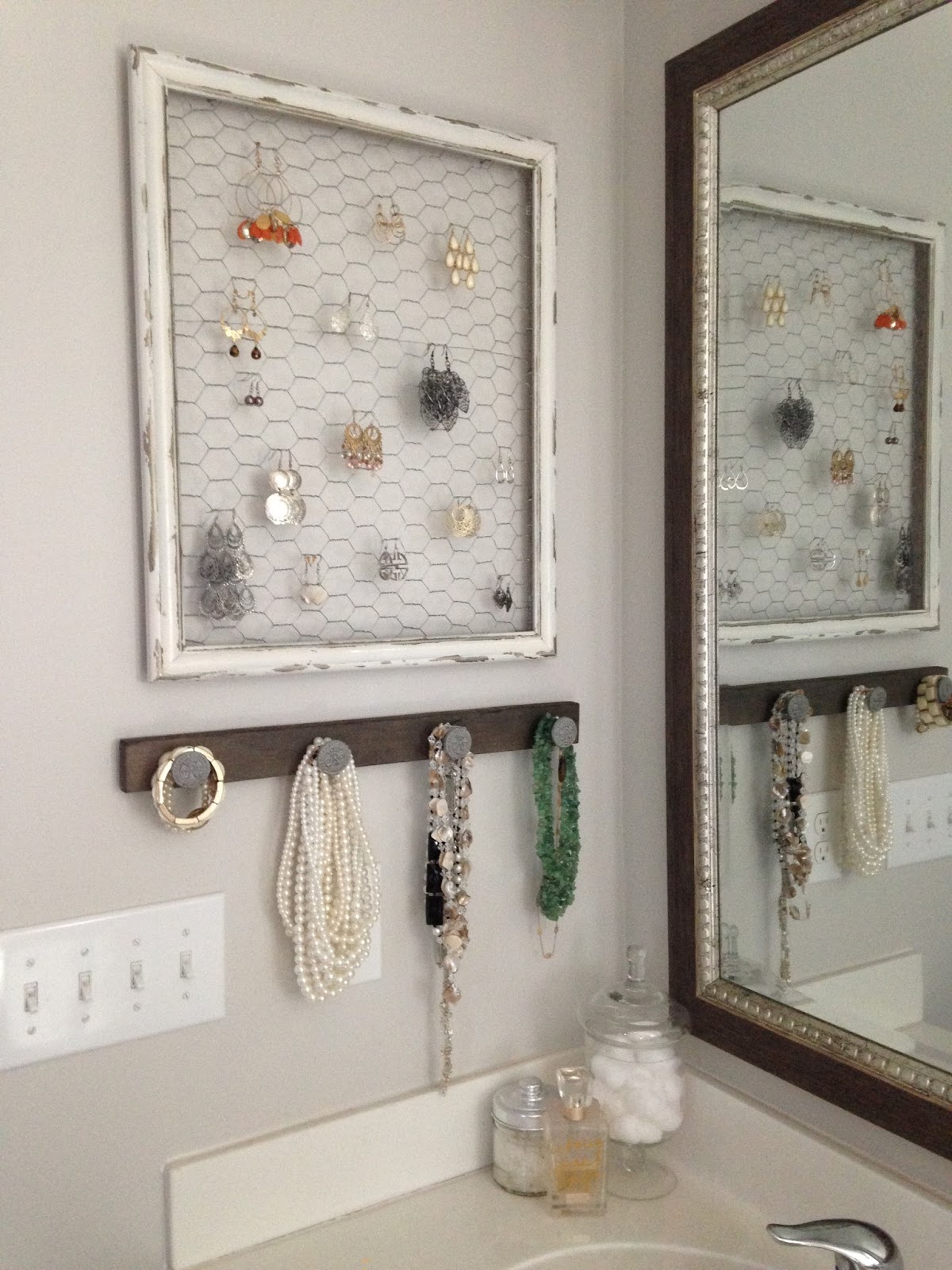
Shot with my iPhone 5:


This is what my jewelry organizer from Monday's post looked like using my iPhone's camera.  I haven't done anything to it editing-wise, but you can probably agree it's not the best picture.  It's grainy and underexposed and just...meh.  

DIY/home decor photography does best when it's clear, sharp, and bright, and it's simply not possible with my iPhone, no matter how many tricks I try.  My bathroom has limited natural light, so it's a tricky spot.

Shot with my DSLR and basic editing:


This, on the other hand, I shot using my DSLR.  And I barely did any editing except sharpened it and bumped up the exposure just a small amount.


2.  Learn manual mode.

Lauren, why are you throwing all this scary stuff at me?  

Ohhh but trust me, manual is TONS of fun when you learn the very basics of it.  I am not someone who can just sit down and read my camera manual.  (And I was an English teacher for 5 years, so that's probably terrible of me to admit.)  I will fall asleep, and I'll learn absolutely nothing.  If you're only using your camera in automatic mode, you're missing out on a lot and not getting your money's worth.

This guy at Fro Knows Photo taught me a lot of tips in his videos in a way that I could actually understand.  He's a quirky fellow, and he's good at explaining ways to learn your camera.  (This isn't even an affiliate thing.  He just really really helped me.  But I'm always honest with y'all anyway.)


3.  Use a tripod and shutter release remote.

These two things alone completely transformed my photography.  If you don't believe me, take a look at this photo when I didn't have my tripod and shutter release remote yet.  I shot this back in January of last year.


It's okay, but it's still underexposed and a bit fuzzy.

I used the exact same camera and the same lens several months later.  The only difference was I used a tripod and shutter release remote.  Here's what I ended up with:


SO much better!  What makes a tripod and shutter release remote so great is you have a lot more control over your lighting.  Without a tripod, you have to worry about camera shake and blurry photos and dark images in a room that has limited light.  

With a tripod, you can bump your shutter speed way way down and snap a photo with the shutter remote.  You eliminate camera shake, and your images come out super sharp consistently.

Remember that jewelry organizer shot from tip #1?  Here's how little light I was working with. 


But in the photos, it still looked like my room was brighter than reality.


Best $30 I ever spent.  I use this tripod and this shutter release remote if you want one too.

Want to know my dirty little secret?  See my headshot in the upper right on the sidebar of this blog?  I DIYed it with just my tripod and shutter remote while my toddler was napping.  There is no photographer behind that camera; just my finger on a button in my lap. :)  No selfie stick here; I busted out the DSLR on that one.


4.  Turn off all of the lights and utilize as much natural light as possible.

Back in February last year, I hadn't really figured out this trick yet.  So I turned on all of the lights because, hey, photos need light.  No.  Instead, I would always end up with this yellowy hue in all of my photos.  Like this:


Even though the hallway where this window hangs has no natural light, I still managed to figure out how to turn off all of the lights, open the windows on either end of the hallway, set my camera on a tripod, bump my shutter speed way down, and use my shutter remote to get this shot in an almost completely dark space.  I snapped this for my Holiday Home Tour this past year:


For my jewelry organizer shots, this is how dark it was in the room.  But the little bit of light coming from that window provided just what I needed without that yellowy color.


5.  Focus on your framing.

You've probably already noticed, but do you see all of that mess on the counter while I was taking the jewelry organizer shots?  Yep, that was there the entire photo shoot since I was in the middle of painting our bathroom cabinets.

And actually, pretty much all of my projects are that way.  (Oh no! The illusion has been destroyed!)  
Yesterday, I had to reshoot my faux planked bookcase for Reloved Magazine.  This is what it looked like in my frame:


Here is what the room looked like behind me:


Yep, furniture moved around, toys thrown everywhere (trust me they're all over the sofa), and Curious George on the TV with an exploring little two year-old in the midst of it all.

Hey, I warned you, I'm always honest here.

Don't get too "artistic" with your framing.  I find that my best, most viewed shots are ones where my project is front and center, no weird angles or complex framing.  


6.  Invest in editing software.

When I first started blogging, I used PicMonkey to edit my photos.  But I wanted to take my photography to the next level, and it just wasn't possible without stepping up my game in my editing.  All of the online editing programs I've used couldn't process RAW photos, and they usually ended up grainy with all kinds of white balance/lighting issues.

I got Adobe Lightroom 5 a couple of months ago, and I've been so happy.  I was worried that I'd be totally lost in learning the program since I struggled with Photoshop in the past, but Lightroom was way easier.  (You can find my Beginner's Guide to Lightroom here.)

Here is the difference.

Shot right out of camera (no editing):


Post editing using Adobe Lightroom:


Lightroom has been a better time saver from the online editing programs too because I can edit all of my photos for a post in one batch.  What used to take me an hour or two in editing for a post, I now can accomplish in about 15 minutes.

7.  Make your images "pinnable".  

I know I was sort of hating on PicMonkey in tip #6, but I still do love it for adding text to my images.  Pinterest is one of my top referrers to my blog because I make my images "pinnable".  

The best way to make your images stand out on social media is to use a vertical image with text for the title of your post and your watermark.  I probably do this on 90% of my posts.  (Ahem...like I did at this top of this very post.)

And like this one:


I've heard great things about Canva from other bloggers too.  You can also add text using Adobe Photoshop if you know how to use the software, but I'm apparently too technologically challenged with that one.  Plus, Photoshop isn't as budget-friendly for me.

8.  Practice practice practice!

Don't be so hard on yourself if improving your photography seems too challenging.  Make it a goal to attempt one skill a week.  Try photographing a project with only natural light, even if you just have a cell phone camera for now.  

Play around with the settings on your camera and learn what works and what doesn't.  Get to know it.  And have fun with what images you can create.  In the end, that's what it should be all about, having fun. 

I'm still not a pro, but I'm always happy to help a fellow blogger whenever I can.


Whew!  Man, this was a long post!

Did all of this info help you?  Do you have any photography tips of your own?  Do you want to see more posts like this?  Please tell me in the comments!


Blessings,


Follow me on
Or find me on